Getting Started
Download the General CLI, log in, and push your first fleet from the terminal.
Getting Started with General Infinity
General Infinity is a platform for managing fleets of edge devices: small computers like a Raspberry Pi or an NVIDIA Jetson that run out in the field, often far from anyone who could plug in a monitor and keyboard. Instead of updating each device by hand, you push your code once from your own computer, and every device in that fleet picks it up on its own.
A fleet is a named group of devices that all run the same deployment. You might keep one fleet for a batch of sensors at a warehouse, and a separate fleet for a different product line entirely. Devices check in with the platform on a regular basis and pull whatever version has been assigned to their fleet, so nobody has to walk out and connect to each one individually.
Getting code onto a fleet is done through the General CLI, a small command line tool you run from your own machine. It handles logging you in, uploading your project, and telling a fleet which version to run.
The rest of this guide walks through that process from the dashboard, starting with your list of fleets and ending with the CLI downloaded and ready to use.
Your Fleets
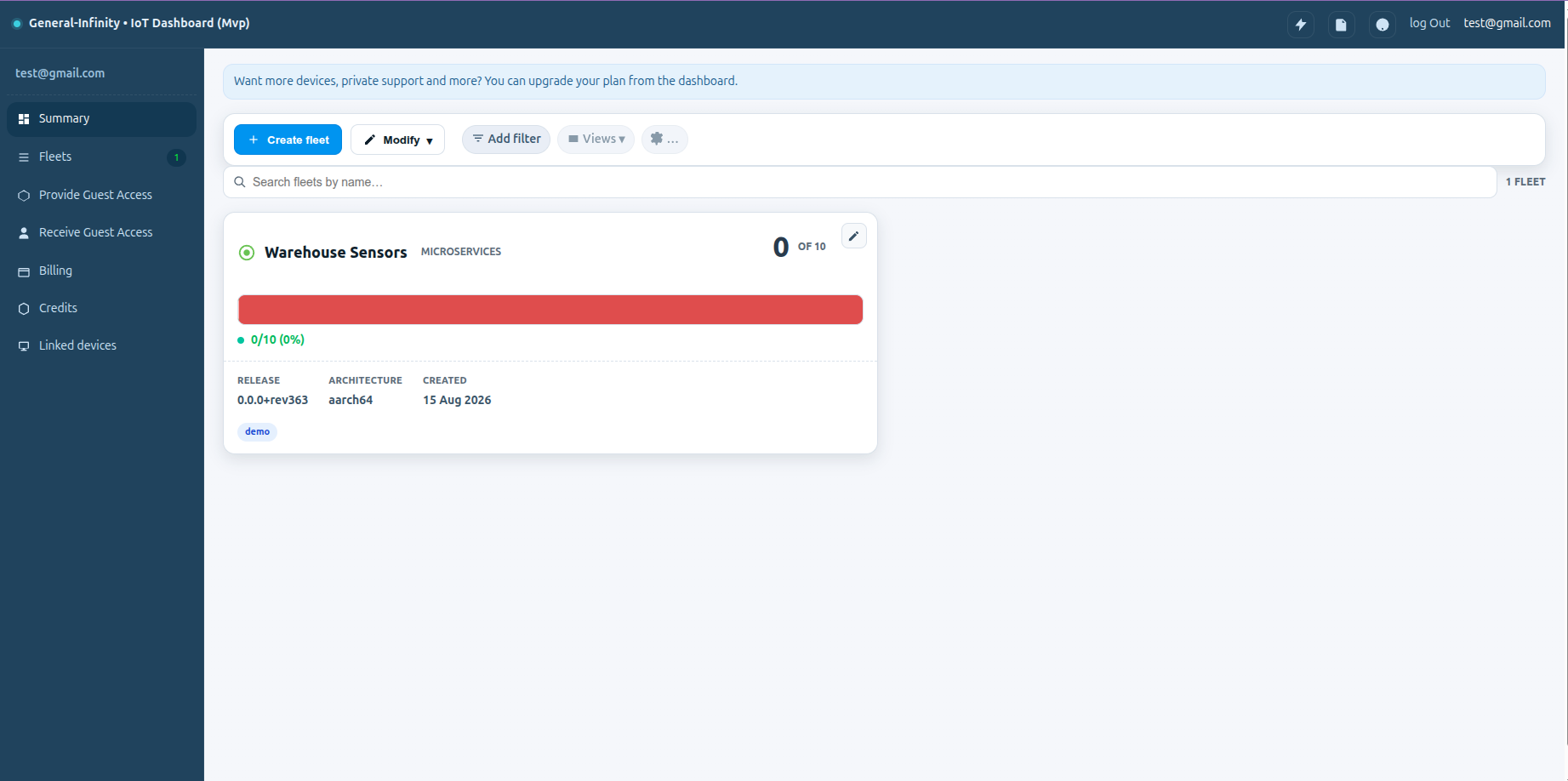
After signing in, you land on your list of fleets. This is every fleet on your account in one place. Select a fleet to see the devices inside it.
Devices in a Fleet
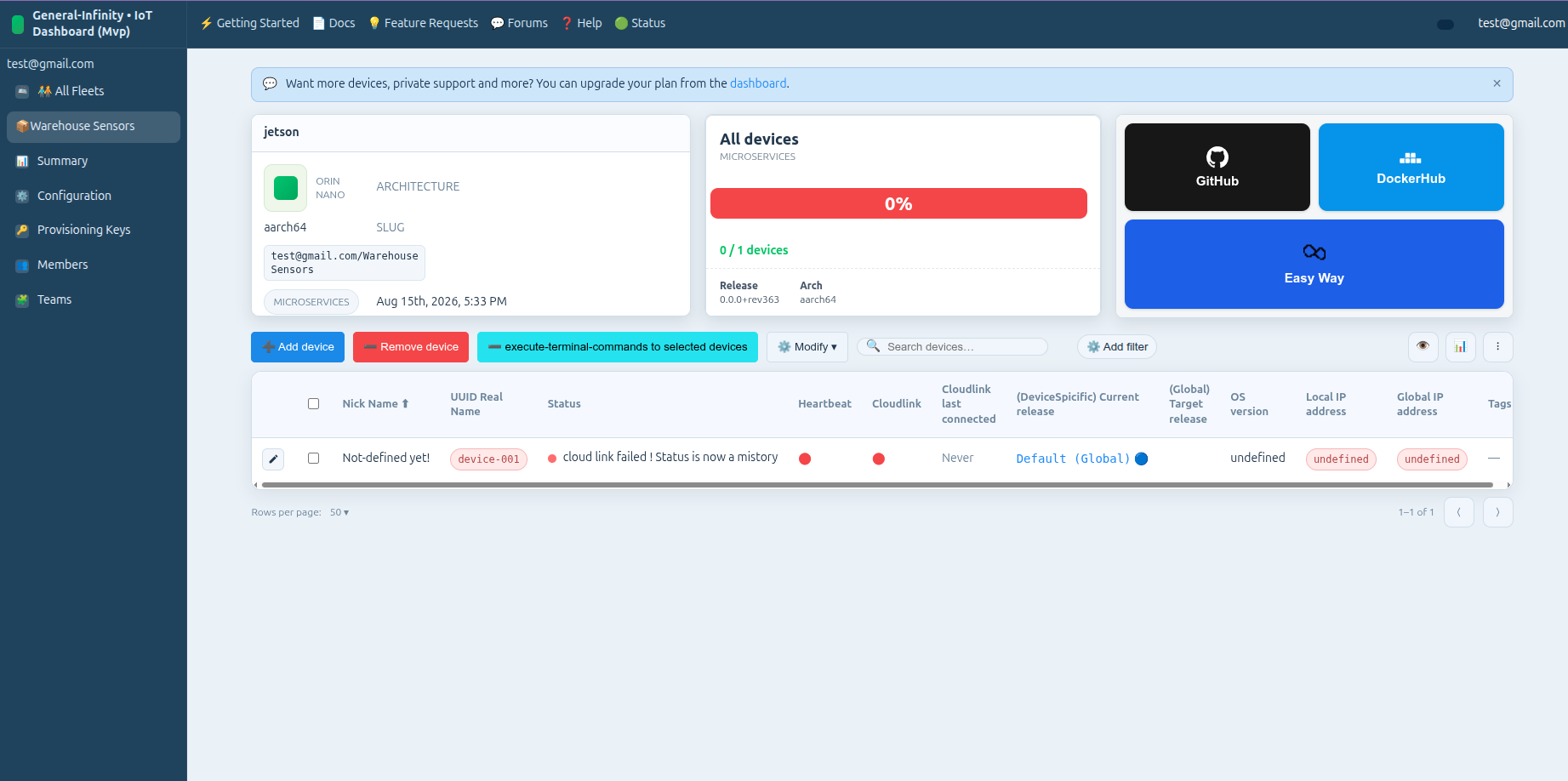
Opening a fleet shows every device that belongs to it, along with three ways to deploy to that fleet: GitHub, DockerHub, and Easy Way.
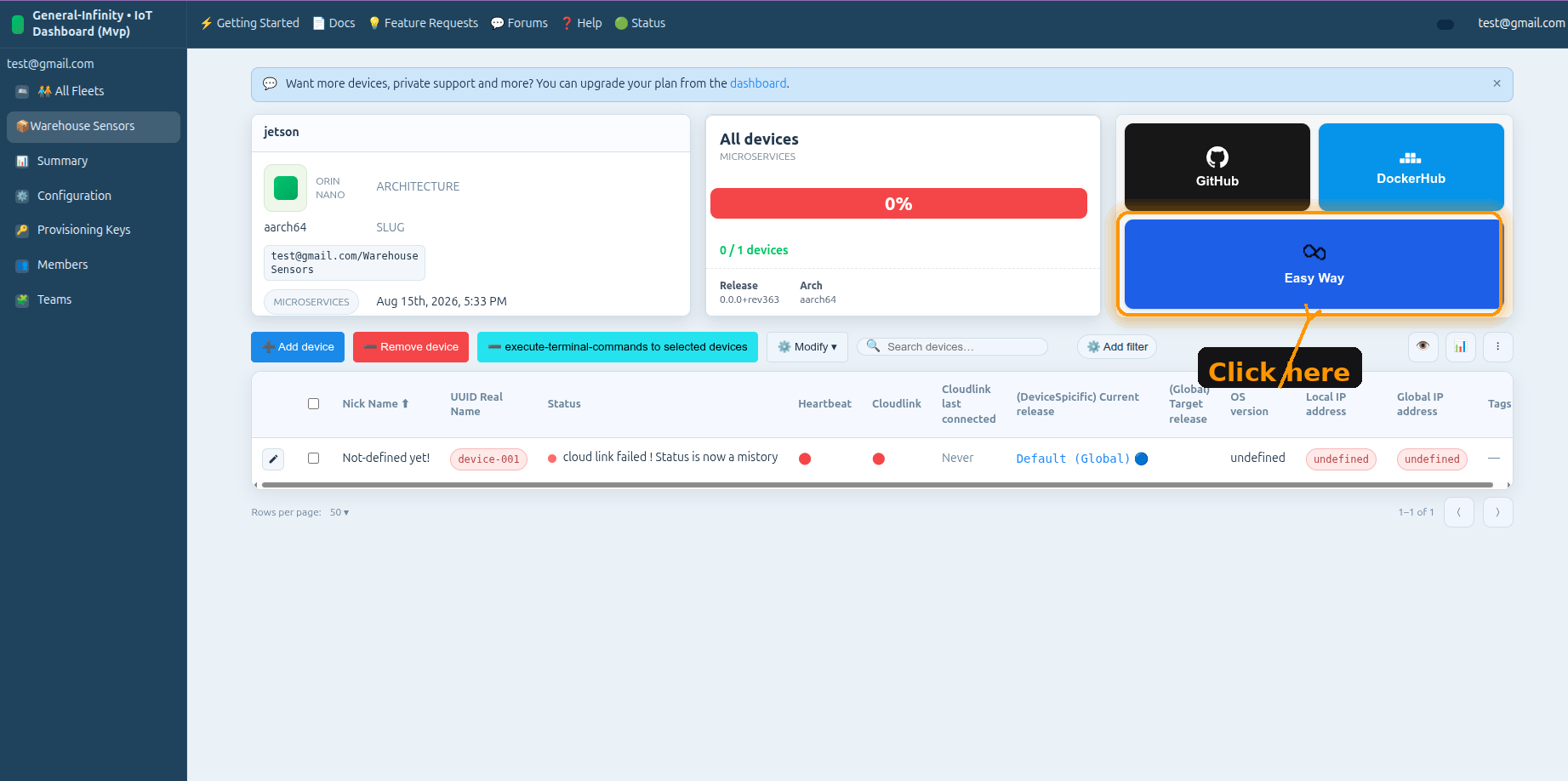
Deploy with Easy Way
Easy Way is the fastest path to a working deployment, and the one this guide follows.
Choose Your Platform
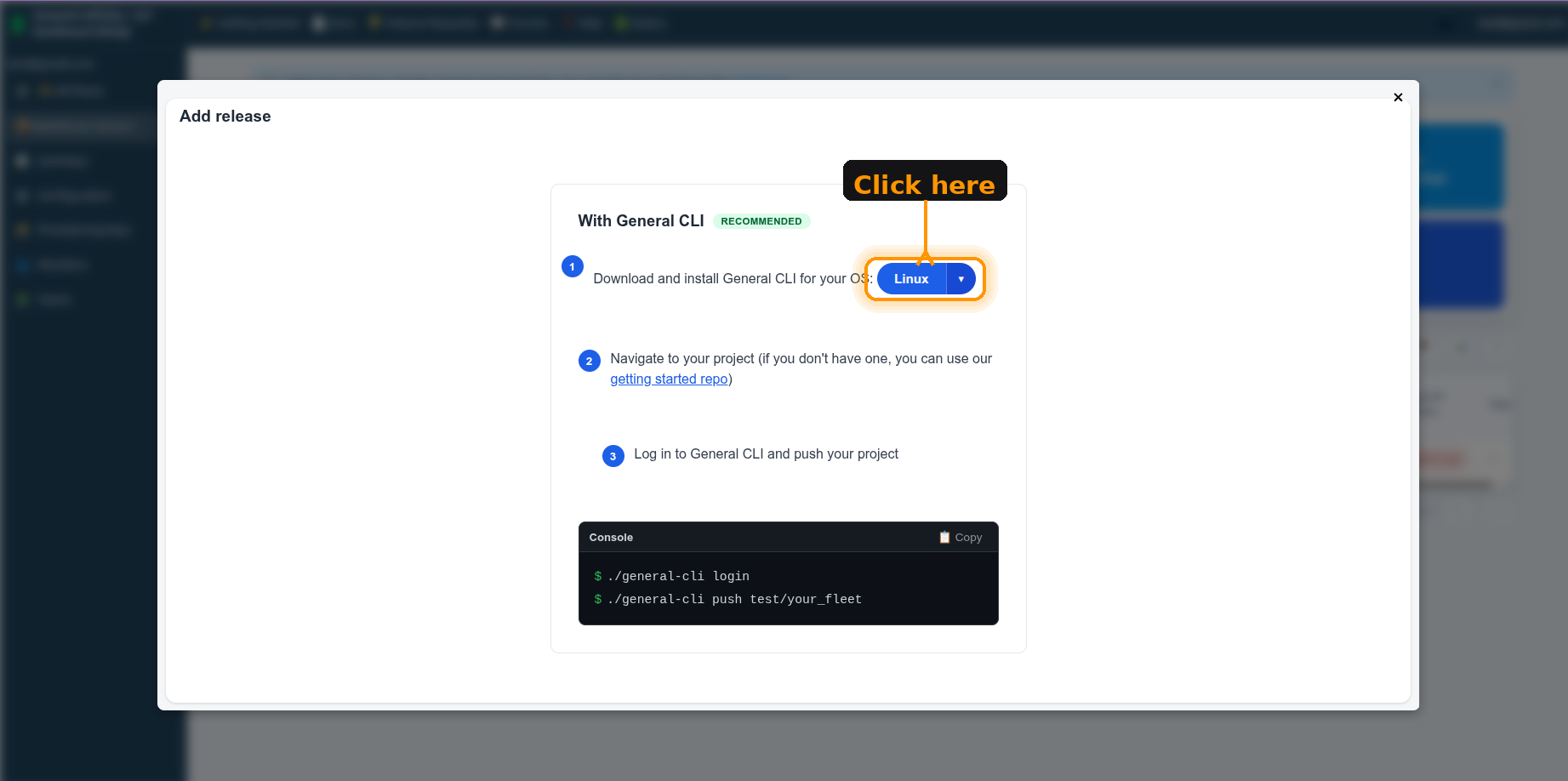
Easy Way opens a short set of instructions for your operating system. Choose Linux to download the General CLI.
CLI Downloaded
Once the download finishes, the General CLI is ready to run from your project directory.
